
Chat and terminal
Talk to any agent in a chat view, and switch to its terminal when you need it.
Every agent session has two faces: a chat and its terminal. Both show the same live session. Switch between them with the button in the chat’s toolbar, or press Option+G (Alt+G on Windows and Linux).
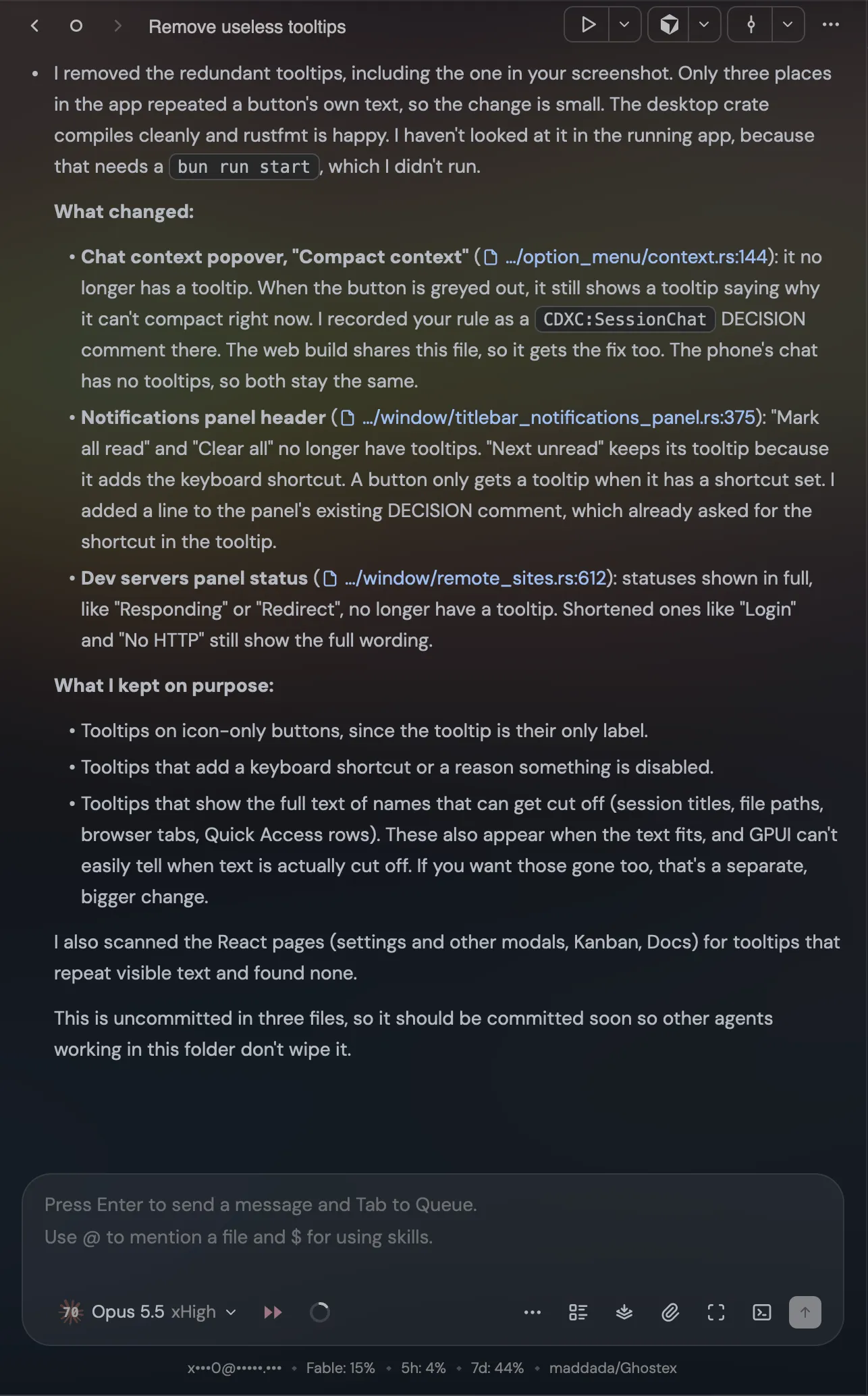
Send a message
Type in the message box and press Enter. Some handy extras:
- Tab queues the message instead. It’s sent when the agent finishes its current work.
- Paste an image, or click the paperclip to attach files and folders.
- Type @ to mention a file, / to see the agent’s commands, and $ to use a skill.
- In Claude Code and Codex, start a message with ! to run a shell command, like
! git status. - Escape stops the agent.
- Ctrl+G (Ctrl+Shift+G on Windows and Linux) opens a bigger editor for long prompts.
When an agent asks you a question, it appears above the message box with its suggested answers. Pick one or write your own.
Model and effort
The pill at the bottom left of the message box shows the agent, model and effort. Click it, or press Option+P (Alt+P on Windows and Linux), to switch models, effort, or account. A click changes this session and also becomes your default. A right-click changes only this session (Claude Code).
Reading the conversation
- When an agent finishes a turn, its tool work folds into a Worked for line, so you see the answer first. Click it to expand.
- Files the agent changed are grouped under N files changed. Click a file to open it.
- Hover a message to copy it or save it as Markdown. On your own messages, Rewind to here lets you try again from that point.
- Simple mode (in the ⋯ menu of the message box) hides most tool details for a calmer view.
Terminal
The terminal is a full Ghostty terminal. Use it for anything the chat doesn’t cover, like an agent’s own setup screens. Cmd-click (Ctrl-click) opens links, and pasting an image gives the agent a link to it.