
Sessions
Start agents, keep many running, and tidy them up.
A session is one agent (or one plain terminal) working in a project. Sessions keep running when you close the window or restart Ghostex, and come back exactly where they were.
Start a session
| To start | Press |
|---|---|
| Your last-used agent, like a “New chat” button | Cmd+Shift+O |
| Any agent, a browser tab, or a terminal (a picker) | Cmd+N |
| A plain terminal | Cmd+Shift+T |
You can also click the agent button on a project’s header in the sidebar. On Windows and Linux, use Ctrl instead of Cmd.
A new chat that you leave empty closes on its own, so blank sessions don’t pile up.
Watch several at once
Drag a session from the sidebar onto the left, right, top or bottom edge of the session area to split it. Drop it in the middle to swap it in instead. Cmd+D splits a new terminal beside the current one.
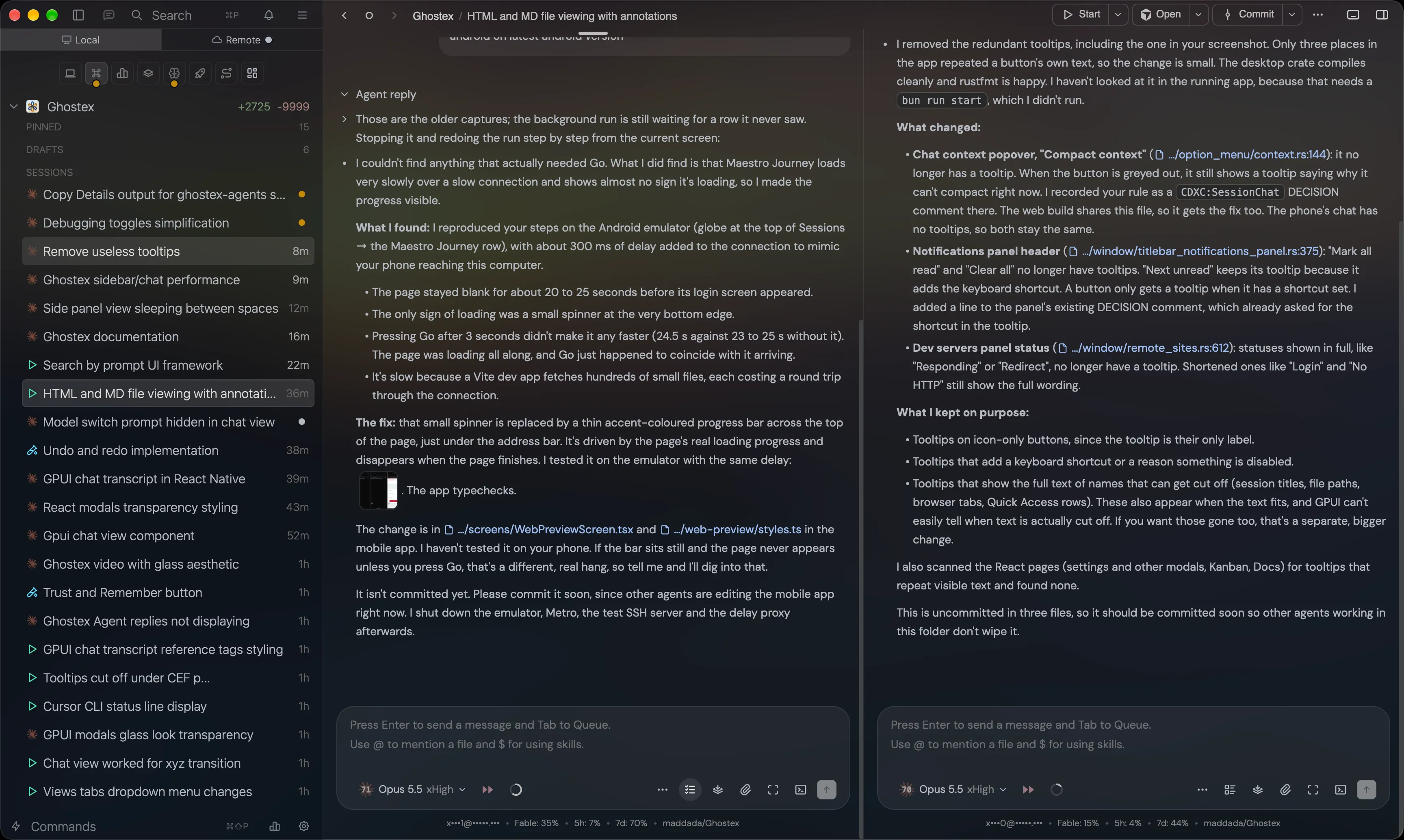
Keep the sidebar tidy
Right-click a session (or hover it for quick buttons) to:
- Rename it (Cmd+R), or double-click its name.
- Pin it to the top of its project.
- Tag it, for example with a priority or a custom tag you make in Settings.
- Park it in the collapsible Parked section when you’re done for now.
- Snooze it for 1 or 3 hours, until tomorrow, or until next week.
- Fork it to try a different direction from the same conversation.
- Close it.
A new session with typed but unsent text moves into Drafts after 10 minutes, so you can finish it later.
Sleep and wake
A sleeping session stops using memory but keeps its history. Click it to wake it and pick up where you left off. Turn on Agent Auto Sleep in Settings to put idle agents to sleep for you. ⋯ > Resources shows how much CPU and memory each session uses.
Find old sessions
Open Previous Sessions from More Options to resume any past conversation, from any agent, even ones you started outside Ghostex. See Find anything.