
Views
Code, Browser, Docs, Kanban and more, open beside your agents.
Views open in a panel to the right of your sessions, so you can read code, test a page, or plan work while your agents keep going on the left.
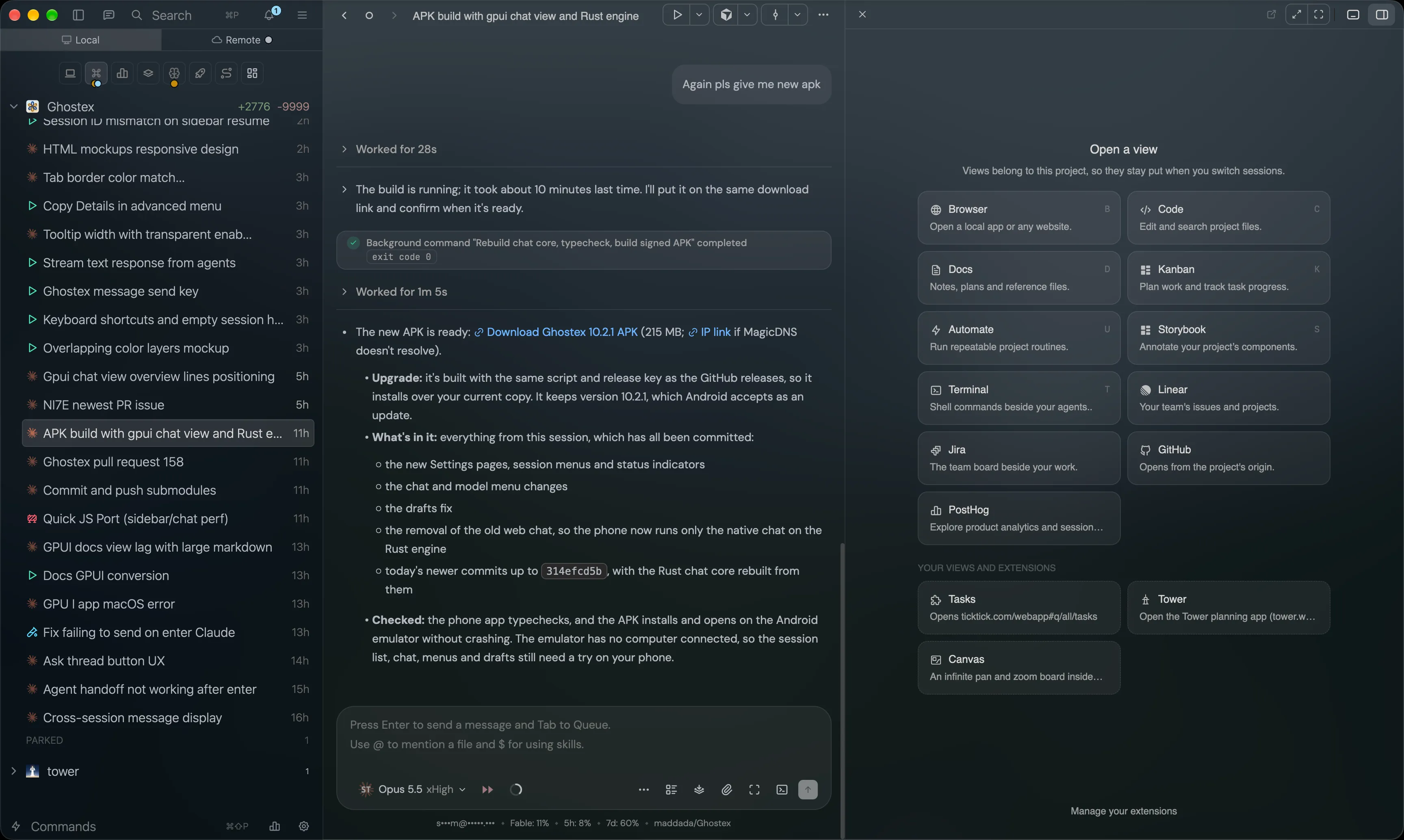
Open a view
- Click the view panel button at the right end of the header, or press Cmd+Option+B.
- With nothing open, the panel lists every view you can open. Press a view’s letter to open it: C Code, B Browser, K Kanban, U Automate, D Docs, T Terminal.
- The + after the last tab opens another view or a new browser tab.
Each project remembers its own tabs. Press Option+1 to Option+9 to jump between them. Drag the divider to change the width.
The two buttons at the end of the tab strip pop the view out into its own window, or expand it over your sessions (Cmd+Ctrl+E).
Built-in views
| View | What it’s for |
|---|---|
| Code | A full VS Code editor for the project. Files your agents mention open here. |
| Browser | A real Chromium browser with tabs and DevTools. Annotate a page and send the notes to an agent. Cmd+T opens a tab. |
| Docs | Read and edit the project’s Markdown, HTML and Excalidraw files, and send feedback to an agent. See Docs and feedback. |
| Kanban | A task board your agents can work from. See Kanban board. |
| Automate | Run agents on a schedule. See Automations. |
| Terminal | A terminal beside your sessions for servers and one-off commands. |
More views
Ghostex also has views for GitHub (opens automatically for GitHub projects), Linear, Jira, Sentry, Figma, Vercel, Supabase, PostHog, and any website you like. Turn them on in Settings > Extensions, then paste the page you want as the view’s home. A Storybook view appears on its own when a project has Storybook.
Views you don’t use sleep on their own, so they don’t slow anything down.